This tutorial will walk you though the email account set up process for setting up email in Windows Mail (for users of Windows 7 & 8)
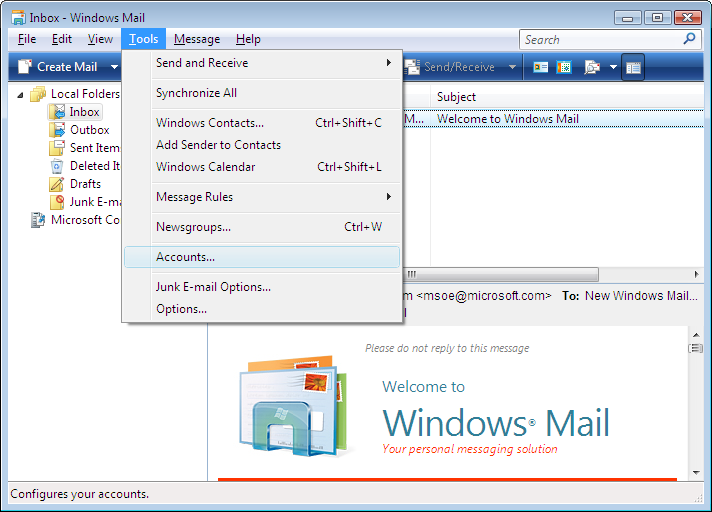
- In Windows Mail, go to the Tools menu and click on Accounts....
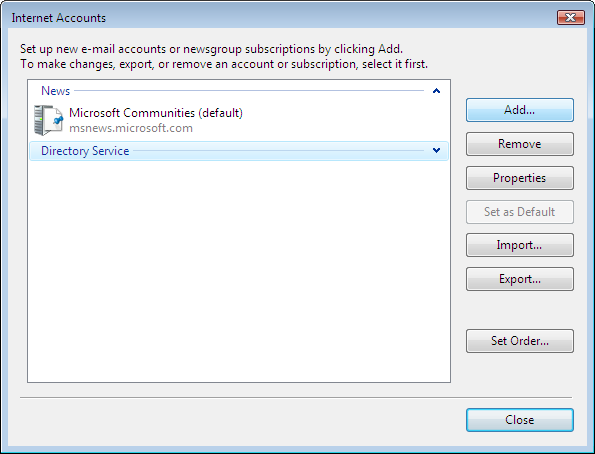
Click on the
Add button in the upper right.
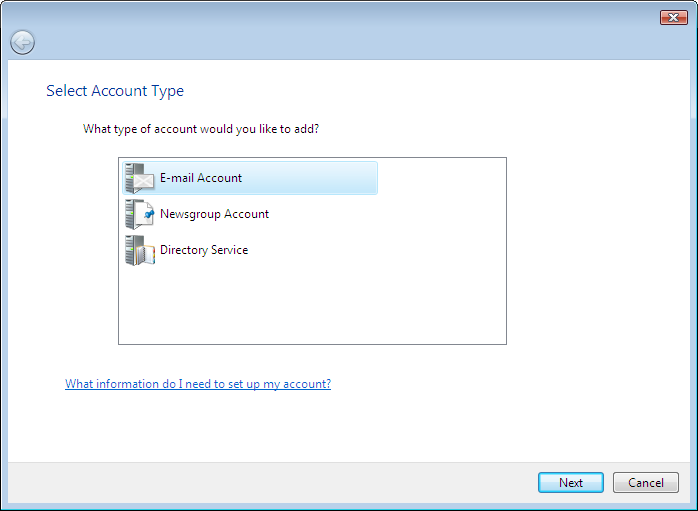
In the
Select Account Type window, double-click on
E-mail Account.
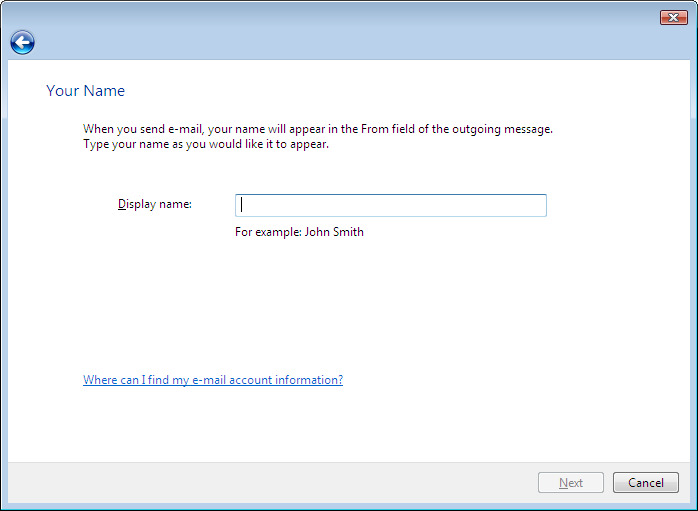
In the
Your Name window, type in the name you want your recipients to see when they receive your e-mails, then click on
Next.
In the
Internet E-mail Address window, type in your e-mail address, then click on
Next.
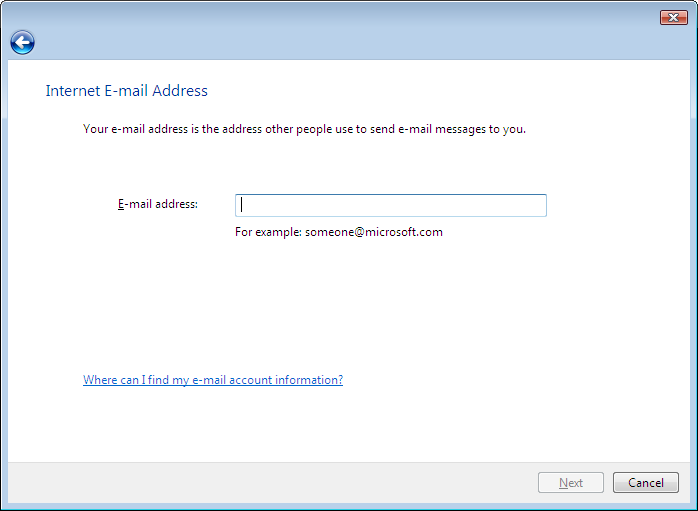
In the
Set up e-mail servers window, enter the e-mail server information as shown below, replacing "user1234" with your username.

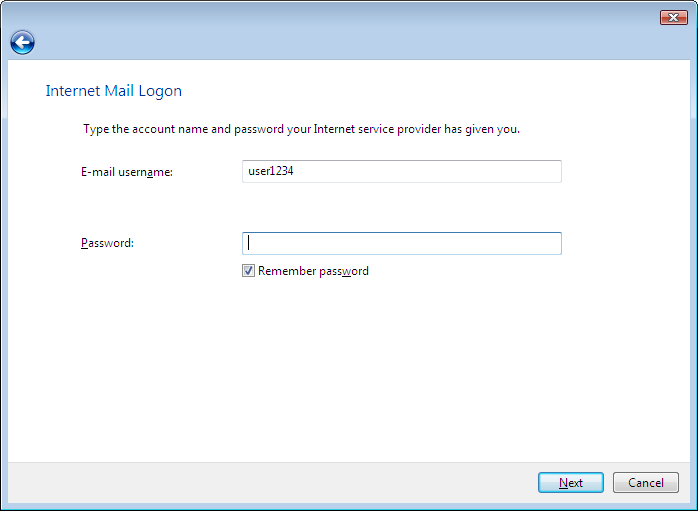
In the
Internet Mail Logon window, enter your Internet ID and password for your e-mail account (you don't need to enter the password, but if you do, you will automatically log on to the e-mail server everytime you open Windows Mail as long as the check is in the box next to
Remember Password).
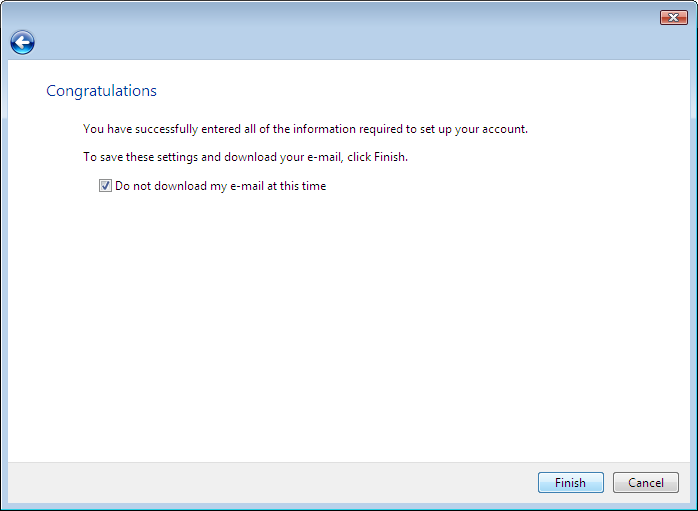
You should see the following screen; check the
Do not download my e-mail and folders at this time box, then click
Finish.
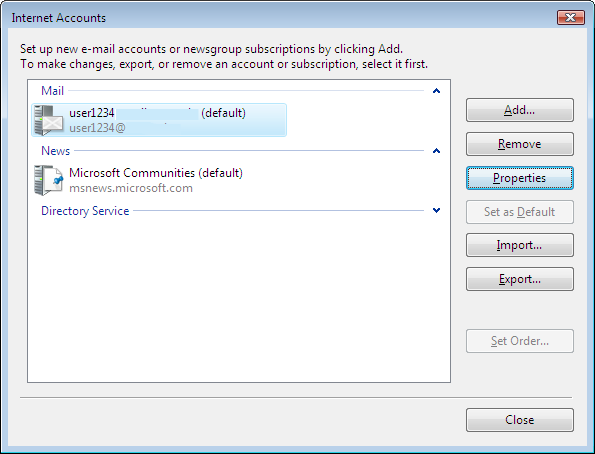
You should now end up at the
Internet Accounts screen; double-click on your e-mail account.
At the top of the
Properties window that appears, click on the
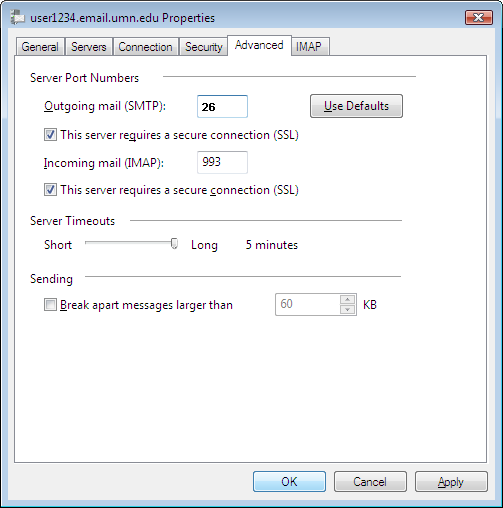
Advanced tab and verify your settings are the same as in the image below.
Now click on the
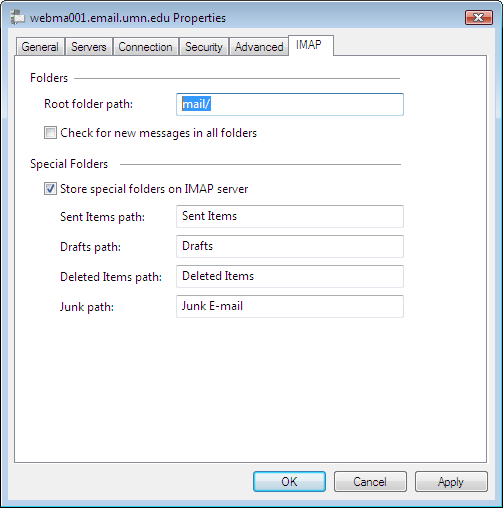
IMAP tab and, in the
Root folder path: blank, enter
mail/. Also uncheck the box for
Check for new messages in all folders.
Click
Ok to save all of these settings, then
Close to exit the
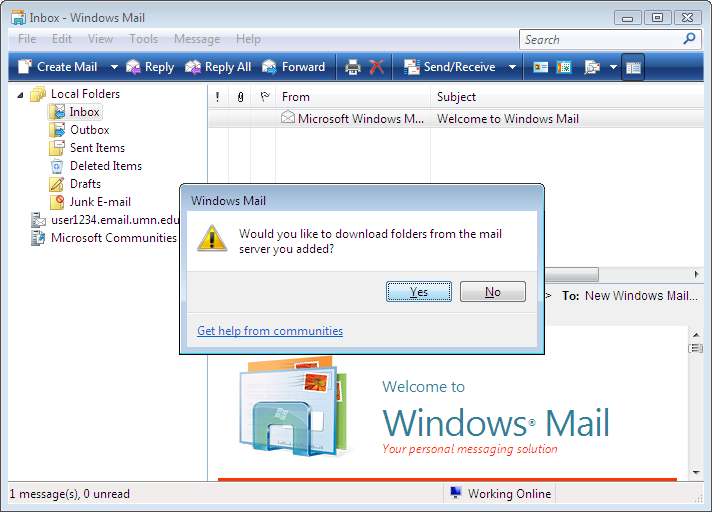
Internet Accounts window. Windows Mail will now ask you if you would like to retrieve your mail.
Congratulations, you have successfully set up Windows Mail to handle your e-mail!
Configuring Delete and Trash Settings
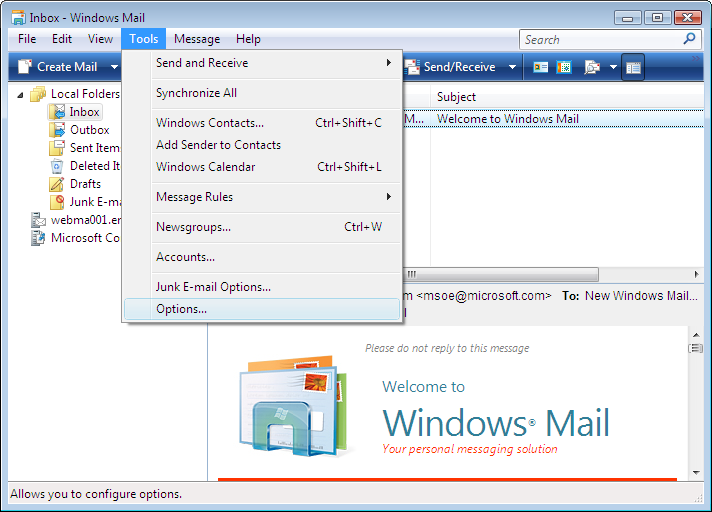
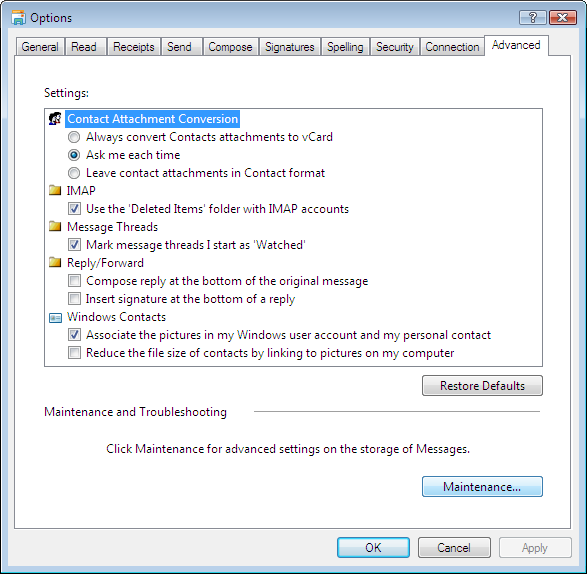
- Go to the Tools menu and click on Options....
Click on the
Advanced tab at the top, then click on the
Maintenance button.
Check the top two checkboxes for
Empty messages from the 'Deleted Items' folder on exit and
Purge deleted messages when leaving IMAP folders. Click on
Close when you are done.
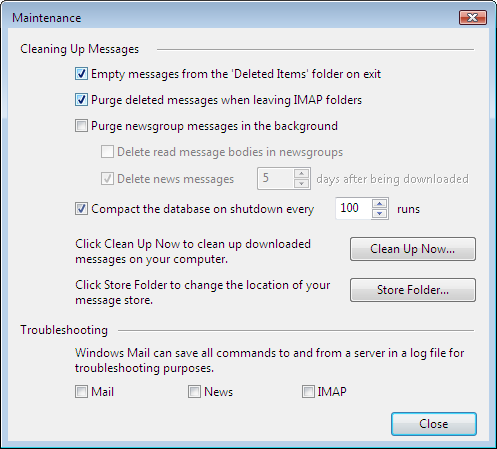
Windows Mail will now delete your unwanted mail automatically when you exit the program.